Short Bytes:If you’ve made your hidden and protected system folders settings visible, you might have come across System Volume Information folder on your PC. It’s a location that’s used to store System Restore points and other system files. By accessing the relevant properties in System Protection option, one can adjust the size of this folder. Also, for smooth functioning of your PC, the regular users are advised to avoid fiddling with this folder.
If you’re an avid user of Windows operating system, you might have frequently come across the System Volume Information folder in the drives of your computer. This folder doesn’t appear on its own. Instead, you need to enable the show hidden and protected files settings in the Folder Options. But, ever wondered what is System Volume Information folder and what’s its use?

What is System Volume Information folder? How to access it?
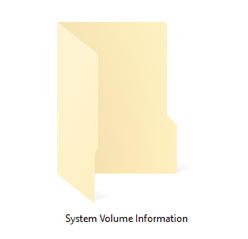
System Volume Information is a folder that’s found on every computer partition. It’s a hidden system folder that your computer’s System Restore Tool uses to store its information and restore points. This folder is used by Windows for system-level functions. That’s why you can’t access it. Apart from Restore Points, System Volume Information folder also stores the content indexing service databases that are used for faster file searches, etc.
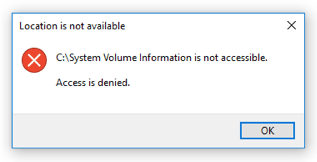
If you’ll try to open System Volume Information folder on your computer, you’ll encounter errors telling you denied access and unavailable location. This tells us that the content of this folder shouldn’t be touched/altered in normal conditions. On NTFS-formatted drives, Windows will stop you from deleting it. However, onexFAT or FAT32drives, you’re able to delete the folder but Windows will again create it in future.
Just in case you wish to access this folder, here’s adetailed guidefrom Microsoft. Here’s another great SuperUserresourceto help you out.
System Volume Information folder is very large — How to shrink it?
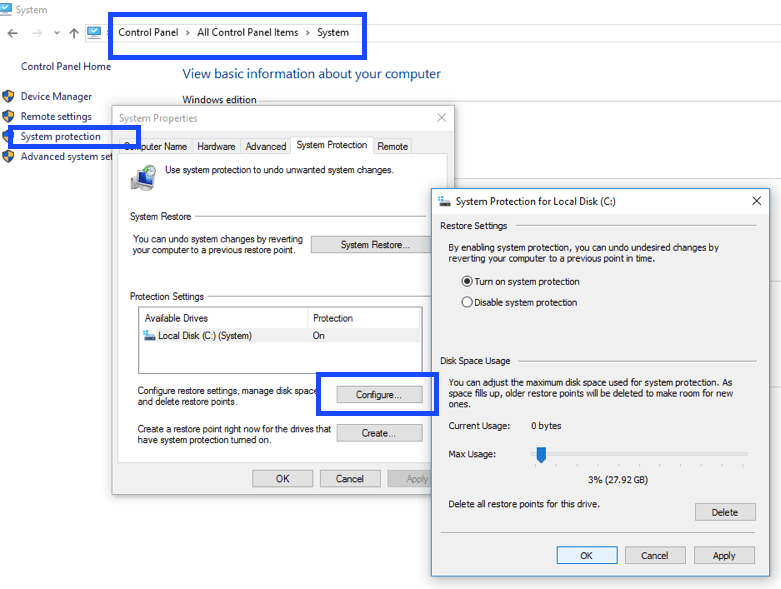
you may access Windows System Volume Information folder by visiting the System and Security option in Control Panel. There, find System option and click on it. Now, find System Protection option in which there’ll be Protection Settings. There, you can see if System Restore option is enabled or disabled.
You can also use this setting to decide how much disk space your PC is using as System Volume Information folder to store System Restore points. Simply click on the Configure button to resize the folder size.
Should I delete System Volume Information folder?
As we’ve already mentioned above, System Volume Information folder stores important data of your operating system. So, leave it as it is. If it’s big size is troubling you, feel free to reduce the system restore folder. There are many online scripts for tweaking with your System Volume Information folder but I won’t advise you to use them.
Also Read:What Is The Difference Between Software, Driver, Firmware?