From school lectures to office meetings, online video conferences have taken over a significant portion of our day-to-day life. And, due to these frequent video conferences, people have started experiencing burnout. Although most of us can do little about it, those in touch with their notorious side can try a trick. This guide is just about that, and it will tell you how to freeze your screen onGoogle Meet.
There are chances you might be confused about what the term “freeze” exactly means here. We’re talking about freezing yourGoogleMeet video to a specific frame, so you can escape that umpteenth meeting of the day without letting others know. The success of this trick depends on which frame you pick to freeze your video on. So make sure you give your best-focused look possible for this.

But screen-freezing isn’t ethical enough for a video conferencing platform to natively support it. Understandably, Google doesn’t provide any built-in feature with this functionality either. Therefore, we’ll be using third-party extensions for this.
How To Freeze Your Screen On Google Meet?
On Desktop/Laptop:
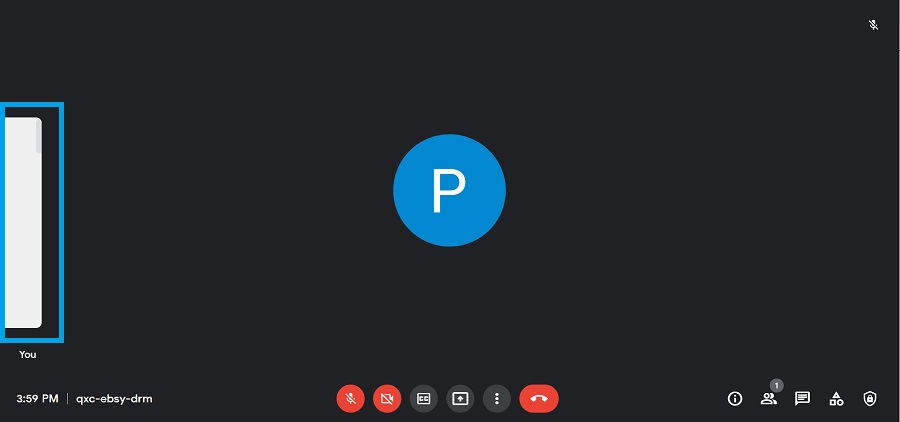
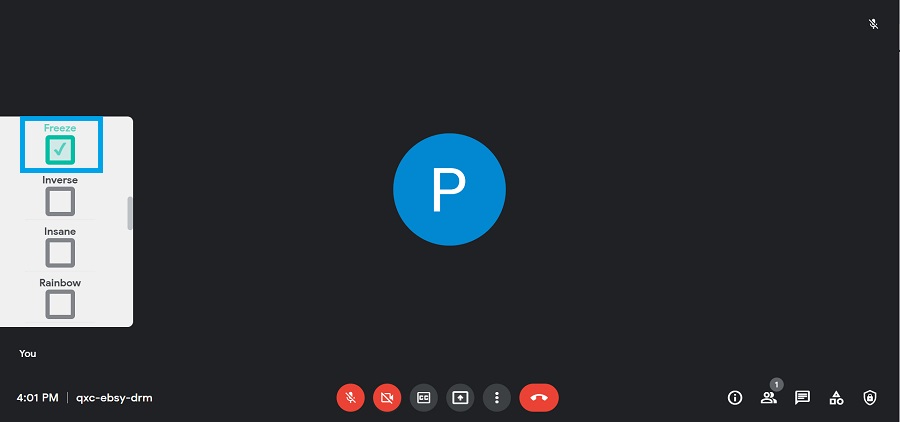
- Scroll down to the white panel and check “Freeze” once you’re ready to freeze your screen.
To resume your normal video or un-freeze, uncheck the “Freeze” box from the aforementioned panel.
On Mobile:
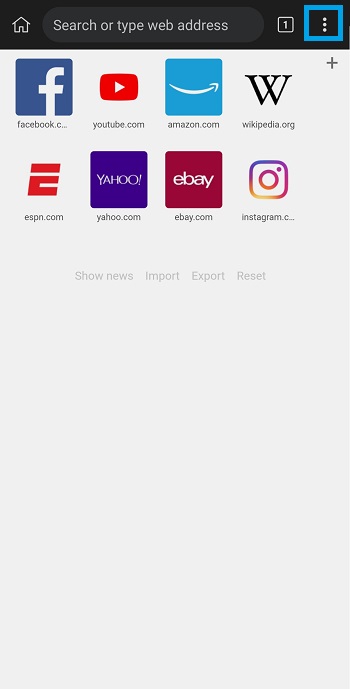
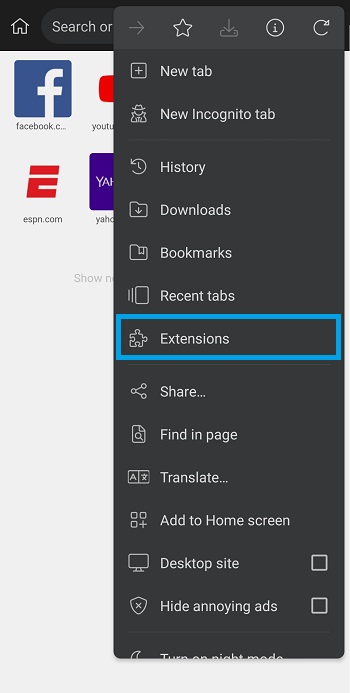
Tap on “Extensions.”
Select “+ (from store),” and then search and install the “Visual Effects For Google Meet” extension.
Once done, tap on the ellipsis button and check “Desktop site.”
Go tomeet.google.comand create or join a new Meeting session within the browser. (Log in to your Google account and grant video and audio permissions if prompted.)
Tap on the white panel on the left edge of the screen. (Turn the video on and off if it doesn’t appear.)
Scroll down and check “Freeze” to freeze your screen when ready.
You can uncheck the Freeze effect from the same panel as mentioned before to stop the effect.
How To Freeze Google Meet Screen Without “Visual Effects”?
If due to mixed reviews or for some other reason, you don’t want to install the extension above, you can try using an alternative. There’s an extension called the “Mercator Studio for Google Meet” that does the same job but has more favorable community feedback, especially onFirefox.
- Go to the right position for the frozen frame, then scroll down and check “freeze.” At the bottom-left, you can keep an eye on your frozen frame (the one others in the Meet can see) and your real-time video (only visible to you).
To undo the freeze effect, uncheck the “freeze” option from the same layout mentioned before.
That’s how you’re able to use this Google Meet hack to freeze your screen without letting anyone find out. You may use this trick to take a break from a long presentation or back-to-back online classes while your frozen frame fills in for you. Another cool use would be making your friends play a stare-off game with your invincible frozen frame.
However, I still suggest using this trick responsibly, in a way that doesn’t hamper productivity. Remember, with a great Google Meet trick comes great responsibility. Share your experience of using this hack in the comments below.
