The world has seen deadly Windows 10 ransomware likeWannaCryandPetyathat targeted many Windows PCs globally. That’s why Windows 10 now comes with a built-in ransomware protection tool.
In this article, I’ll tell you how to enable ransomware protection on Windows 10 and what other options does it offer.

What is the Windows 10 Ransomware protection feature?
In a typical ransomware attack, the victim remains locked out of important files until a ransom is paid to the attacker. The user ends up paying the money in cases where sensitive data is at stake. In some cases, there is no guarantee whether the attacker will decrypt the machine even after getting ransom, they might demand more.
Ransomware attacks have evenresulted in deaths, so it isn’t just that only digital assets are at stake. Microsoft has tried to tackle this problem by preventing malicious apps from making unauthorized changes to some important folders on your machine.
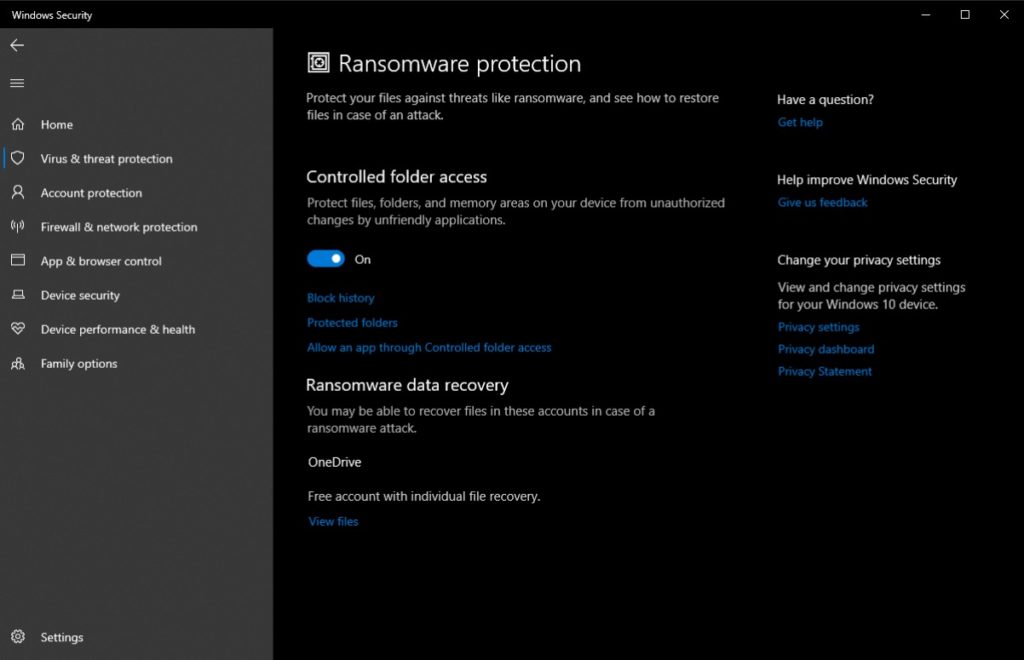
Microsoft maintains a list of trusted apps, which can be used to verify whether the app installed on your machine is not ransomware. The feature may not be fool-proof but at least it adds an extra layer of security.
How to turn on ransomware Protection on Windows 10?
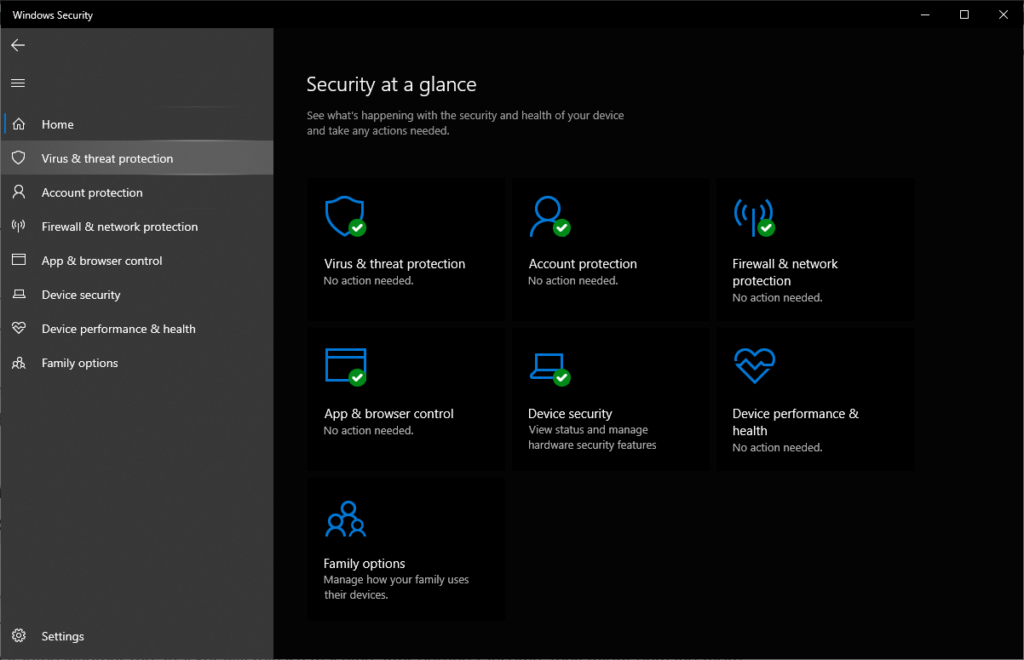
To turn on Windows 10 ransomware protection, you don’t need to install any third-party or first-party app for that matter. You can do it using the built-in Windows Security antivirus app with the help of the following steps.
1. Open theWindows Securityapp on your PC.
2. Click onVirus & threat protectionoption in the left panel.
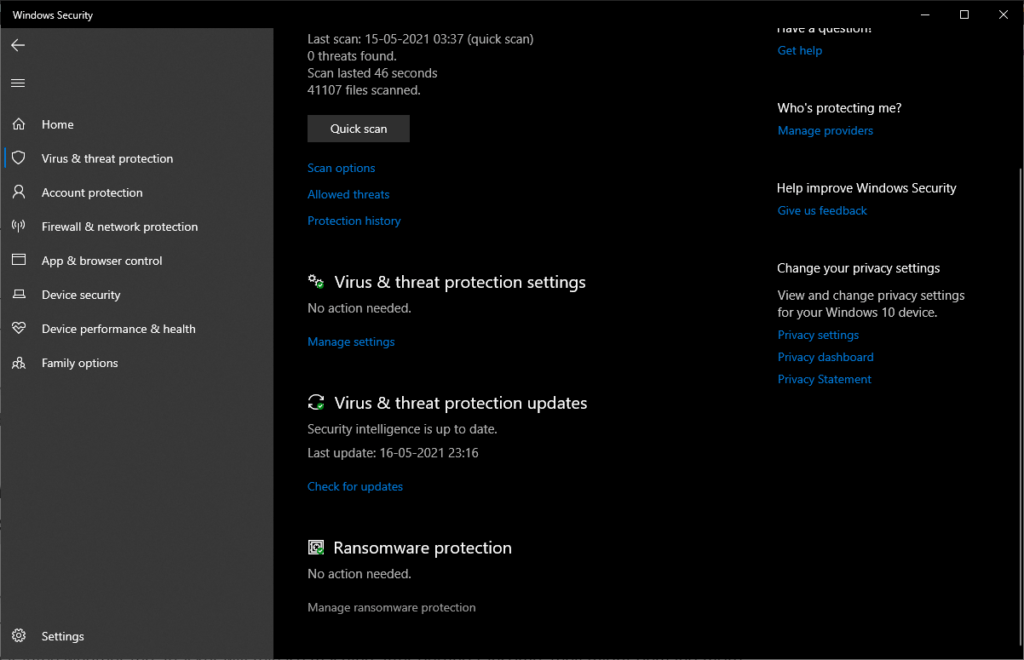
- Now, you’ll see ransomware protection at the bottom, click onManage ransomware protection.
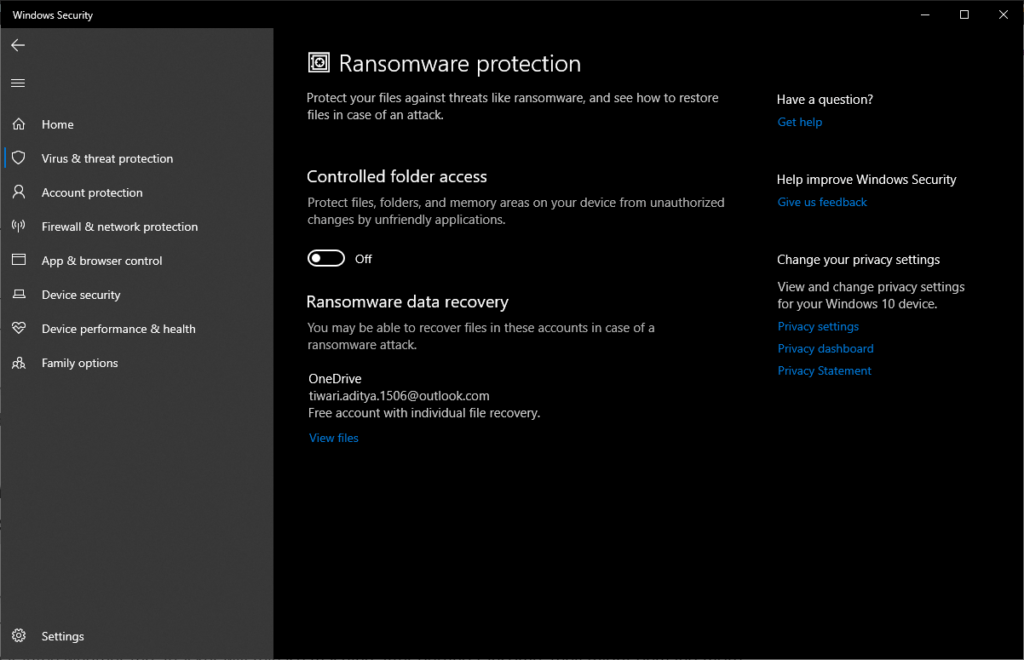
4. Here, turn on the toggle button underControlled folder access.
That’s all you need to do. By default, Windows 10 ransomware protection works only for some system folders like Downloads, Pictures, Documents, etc. But you can click onProtected Foldersto add more. Also, you can click onAllow an app through Controlled folder accessto let an accidentally blocked app bypass the feature.
Enterprise managed devices running Windows Server 2019 can use the ransomware protection feature with the help of Microsoft Endpoint Configuration Manager and InTune.
How to recover your data?
Another thing that’s important nowadays is backing up your files. The answer was your hard drive a decade ago, but now it’s cloud storage.
Microsoft’s OneDrive can be used to backup data from Windows 10, which can help in recovering your files after an unfortunate attack. Hence, it’s recommended to keep your OneDrive sync enabled. Or you can use other cloud services like Google Drive or Dropbox.
You can also use theFile Historyfeature on Windows 10 backup your data on an external hard drive or SSD. verify you disconnect the external storage after backing up your files.
So, this is how you can keep malicious ransomware away from your important files. In your free time, you can read about thedifference between ransomware, virus, trojan, and more.