Apps support has always been one of the major complaints of Chromebook users. Sure, you’re able to install Android apps using the Google Play Store, but most Android versions of desktop apps don’t give you the desktop experience. However, you can install Linux on Chromebook and install and use mostdesktop apps. In this article, let’s look at how to install Linux on Chromebook.
For starters, Chromebooks are powered by Chrome OS, which is based on the Linux kernel. Linux in Chrome OS is containerized, but it’s plenty fast for daily usage. However, if you’re looking for a fully-fledged Linux experience, we will also show you another way of installing Linux, i.e., using Crouton.
Install Linux on Chromebook
Here are the steps to install Linux on Chromebook.
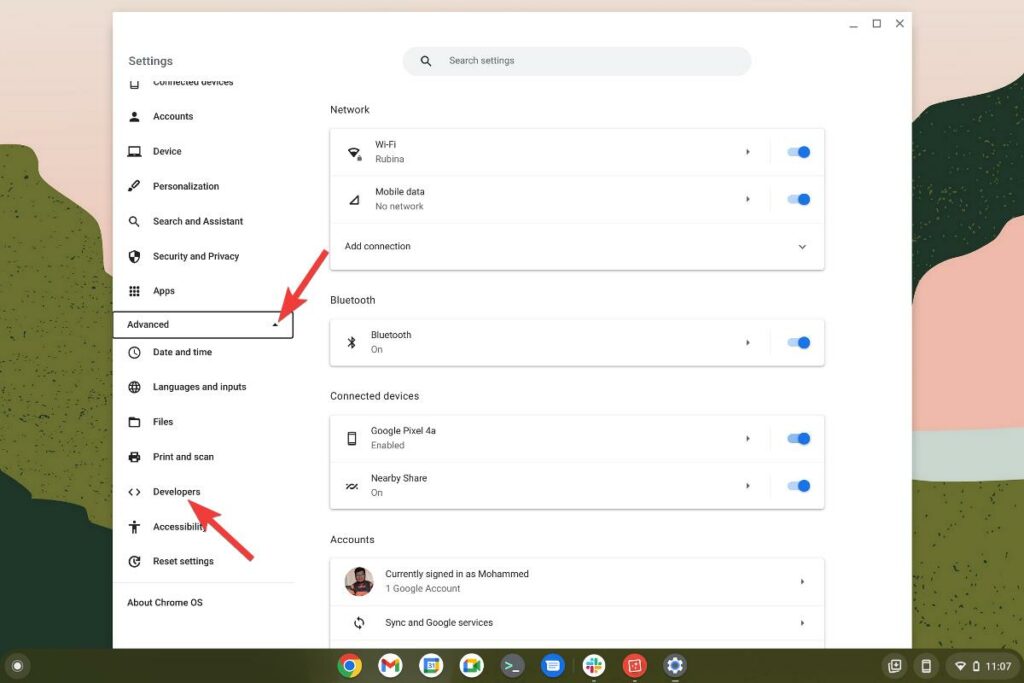
1. Open the “Settings” app from the app menu.
Click on “Advanced” and go to “Developers.”
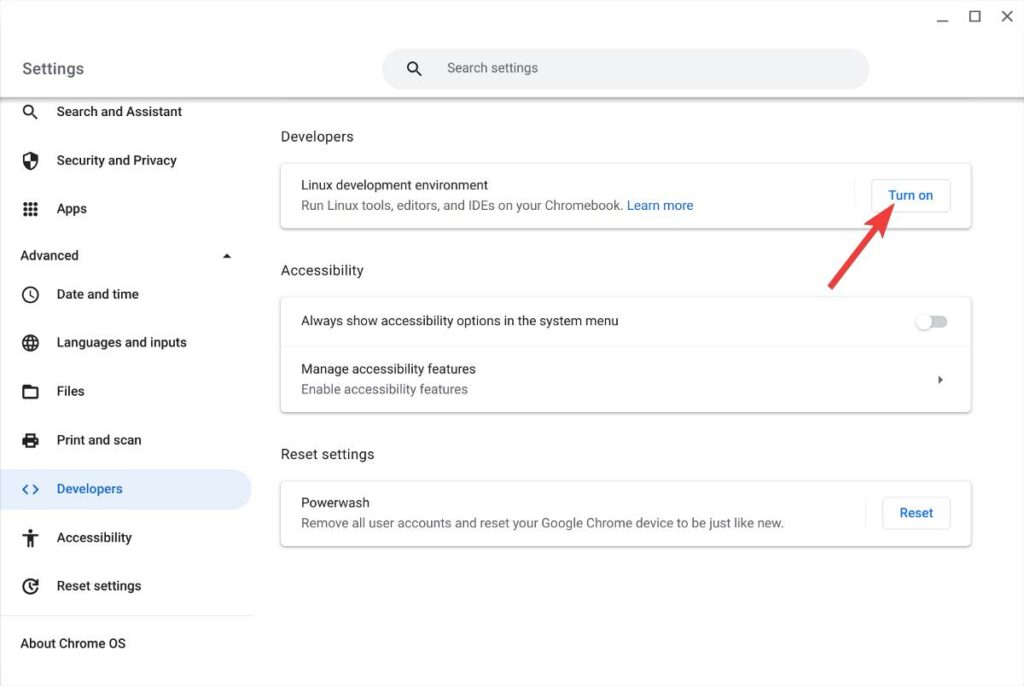
Click on the”Turn on” option beside “Linux development environment.”

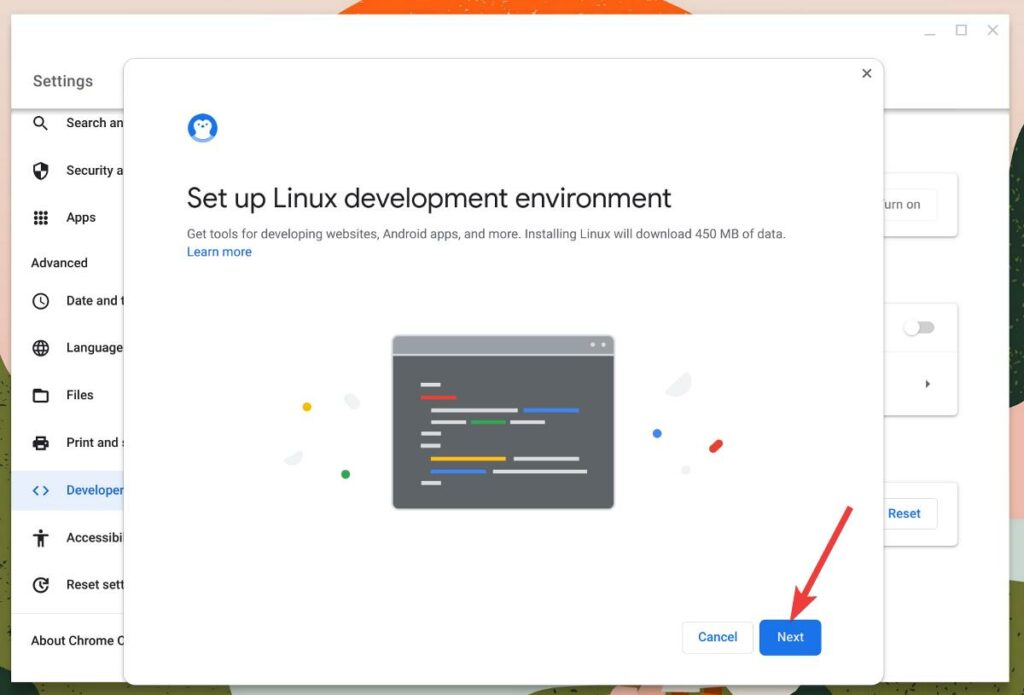
A new Linux setup window will pop up. Click on “Next.”
Enter your username and allocate the disk space for Linux by either selecting the default 10 gig option or the custom option.
Finally, click on “Install.”
The installation might take a while, depending on your internet speed. Once it’s done installing, you’ll be greeted by the Linux terminal.
The ChromeOS Dual-Boot Mantra!
For those wondering if it is feasible to install Linux on Chromebook alongsideChrome OS, yes, it is! Thanks to Crouton. But, the only caveat is that you can only install Ubuntu but not other Linux distributions.
Disclaimer! This process will completely reset your Chromebook. Please ensure to take a backup of important files before proceeding.
Install Linux on Chromebook using Crouton
Head over to the Crouton repository by clickinghereto download it.
Open the Crosh (Chrome Shell). This can be done by pressingCtrl+Alt+T.
The terminal will open inside a Chrome tab. Then type the following command.
Then paste the following command and hit enter
The above command will run the installer and install Ubuntu. You can replace “KDE” with Xfce, Unity and KDE touch, Xfce touch, and Unity touch for Chromebooks with touch screens.
Now, all you need to do is wait, and in the end, you will be asked to provide a username and password.
To start Ubuntu, enter the following command.
To switch between ChromeOS and Ubuntu, pressCtrl+Alt+Shift+Back/Forward.
If you don’t like it, you’re able to easily remove it by following these instructions.
Were you able to successfully install Linux on Chromebook? Let us know in the comments section below. If you’re thinking of buying a Chromebook, check out our “5 reasons to buy a Chromebook” article.
