Making and receiving calls is the most basic feature of a smartphone. So, if your iPhone suddenly says “SOS Only,” it can be concerning as you cannot call, send texts, or use data. While there can be plenty of reasons behind this issue, this article will help you with five easy ways you may fix the “SOS Only” error on your iPhone.
What Does “SOS Only” Mean?
As the name suggests, SOS Only is a mode in which you can no longer make regular calls to loved ones, use data, and send messages. Instead, you can only call emergency services like the police, ambulance, and rescue teams, depending on your location.
There can be plenty of reasons behind this issue, chief among them being that you’re in a low-coverage area and the phone is struggling to catch networks. Other reasons can include problems with your SIM card, an unpaid carrier bill, a glitch in iOS, or a temporary network outage from your carrier.
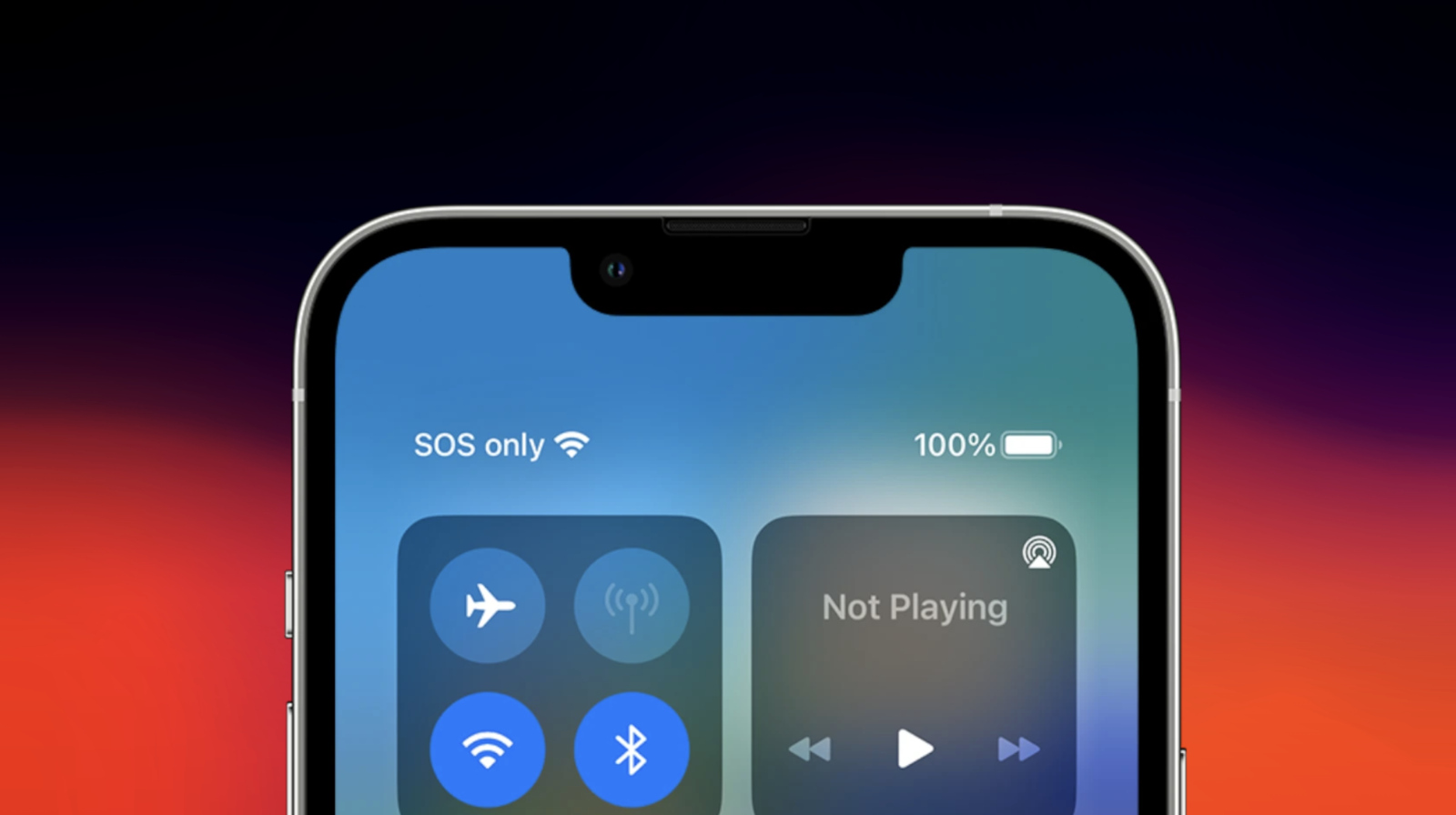
How to Fix “SOS Only” on iPhone?
Since “SOS Only” is not always an error but rather an indicator of poor network availability, there’s no single guaranteed fix. However, you can try several troubleshooting methods to fix it.
1. Move to Better Coverage Area
The easiest solution to fix SOS-only mode on your iPhone is to move to a better coverage area. If you’re with friends or family, check their devices for coverage. If they do, proceed to the next steps.
2. Toggle ON/OFF Airplane Mode
The first troubleshooting method you should try is toggling on airplane mode for a few minutes, then turning it off. To do this, swipe down from the top right corner to open theControl Centre, then click theAirplaneicon.
3. Check for Network Outage
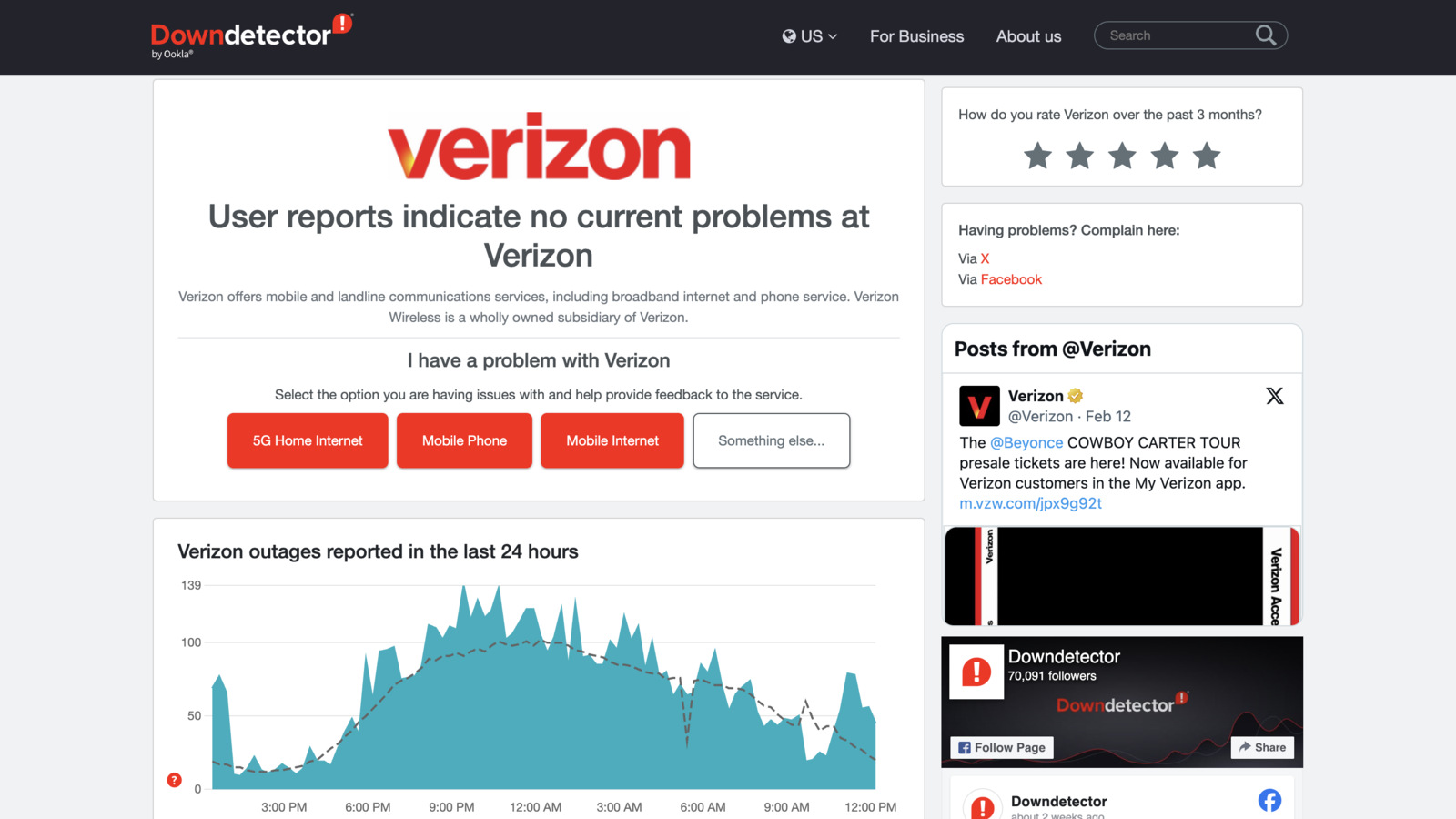
If you have another device with network coverage or access to a Wi-Fi network, check for any outages. Mobile carriers frequently update their infrastructure, which can sometimes cause temporary service outages.
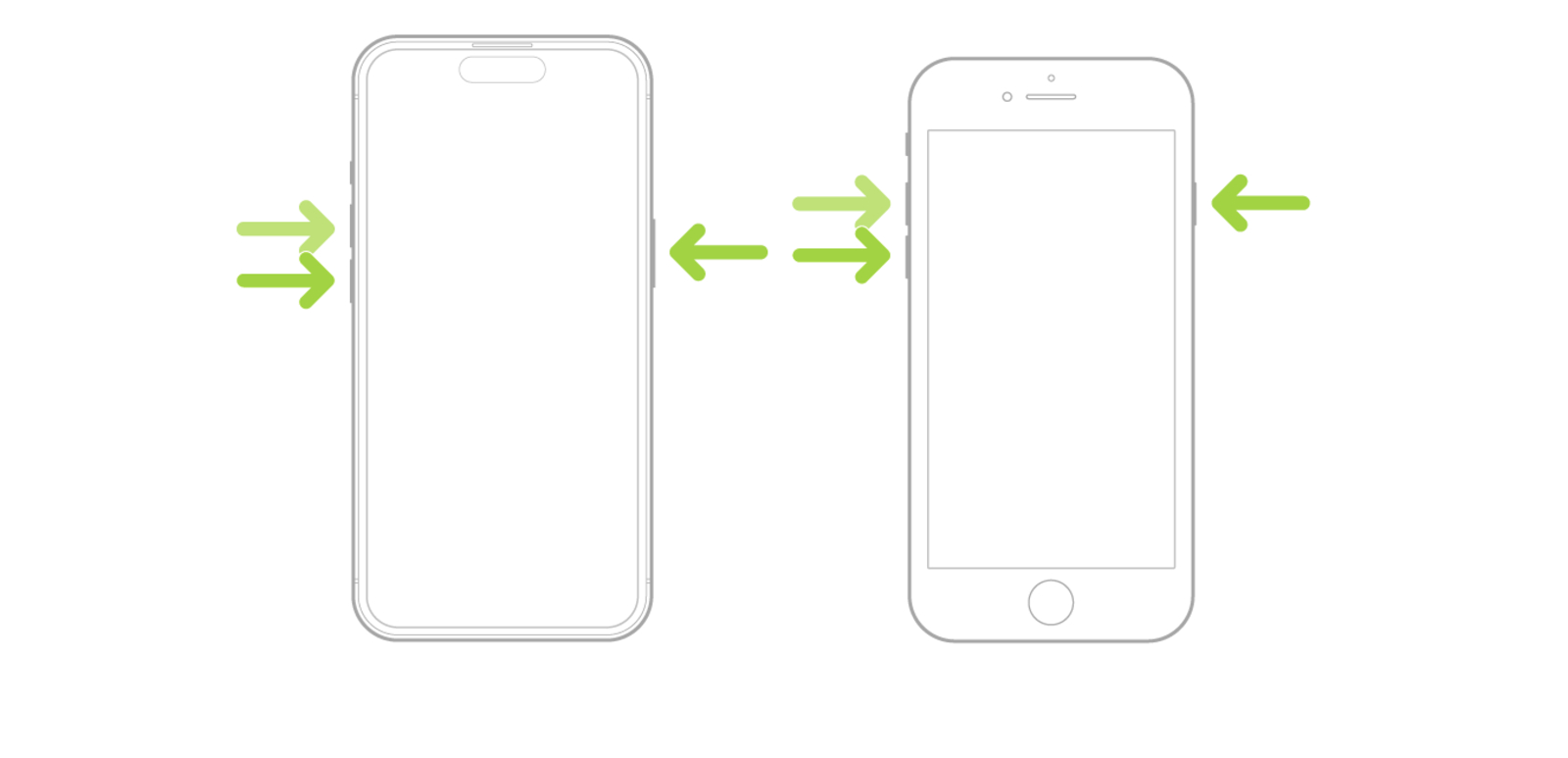
4. Force Restart your iPhone
Force restarting youriPhonecan fix any connection bugs or glitches blocking your connection. Here is how:
5. Reset Network Settings
If you’ve installed custom proxies or DNS servers, they can interfere with the network and trigger the SOS Only mode. Therefore, it’s recommended that you reset your network settings. To do this:
Conclusion
Hopefully, one of these troubleshooting methods helped you fix your iPhone’s SOS Only mode. However, if the issue persists, we recommend contacting your carrier’s customer support (Verizon,T-Mobile, andAT&T) and explaining it to them.