Let’s get real. For at least once in our life, we have all gone through the hassle of searching around the web to find theright key to Enterto boot into BIOS (UEFI for all the new folks) settings for us to tinker with. As you may have already found out, Entering BIOS utility or accessing UEFI settings requires you to hit a specific key thatdepends on the OEMof your PC.
Different manufacturers assign a specific key (or key combination) to boot into BIOS/UEFI directly. In this article, we hope to provide the possible keys in all PC to enter UEFI or BIOS mode. So, let’s get started —

Specific Keys for all PC brands to Enter BIOS/UEFI
Note: Lenovo brand also usesNovo button. When such a designated button exists, make sure to try it if the shown ones fail.
How to Boot into BIOS/UEFI settings from Windows 10?
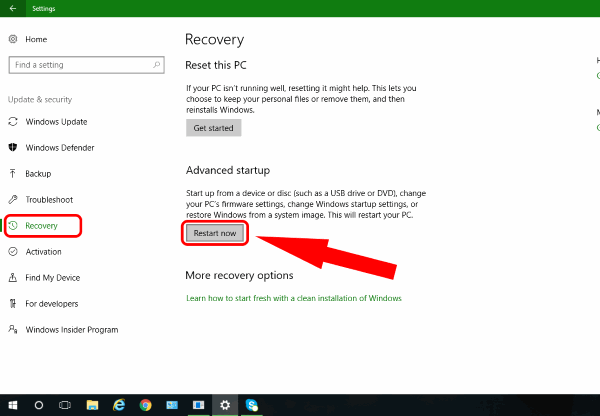
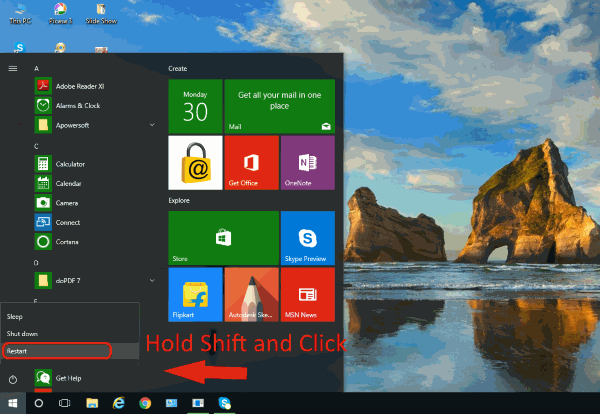
Additionally, If you have Windows 10 (also applies to Windows 8, Windows 8.1), things can be even easier. You can enter Windows 10 BIOS/UEFI settings even if you are unsure of what keys are to be used. TheAdvanced Startupfeature can help you to access the BIOS menu. You can invoke advanced startup in two ways:
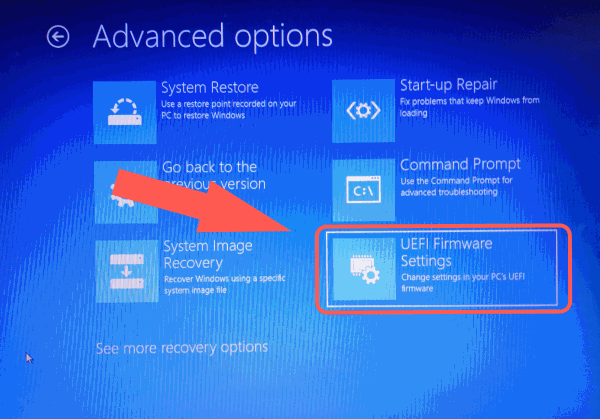
Now, navigate toTroubleshoot > Advanced Options > UEFI Firmware Settings.And voila!
How to boot into USB from UEFI/BIOS?
To start with, prepare the USB bootable media. If you haven’t already, you should check out our other articles. For Windows users, check out how to make abootable USB media using Rufusor creatingbootable USB without any tool. If you happen to be using popular Linux distros like Ubuntu know the easy ways to createbootable USB from ISO in Ubuntu.
Also, do note that if you are looking to boot into an Ubuntu USB media ( or any Linux distributions for that matter), disable fast boot option if available. Moreover, you need to turn on thelegacy bootmode for the same cause. For UEFI/EFI supported modern devices, this can be done bydisablingsecure bootmode.
Enter BIOS/UEFI settings
So that’s pretty much about it. Seems like the OEM’s keep bringing more and more series lineups to the table. Therefore, the keys assigned for accessing UEFI or BIOS settings may change for those devices. Still, we hope that this could help you at the time of need and feel free to use the comment section below to widen the list. Also, point out the keys which didn’t help you to enter BIOS utility as well. Cheers!
