Deleting old and unnecessary emails in Gmail has its own benefits. Doing this clears the junk in your inbox and saves valuable cloud storage in your Drive account. This will help you organize and maintain your inbox so that important emails don’t get lost in the clutter.
How to mass-delete emails in Gmail?
Many users don’t know that they can delete all the emails at once instead of deleting them one after the other. However, Gmail offers you this ability only on the desktop version of the platform. Follow the steps below to mass-delete emails in Gmail.
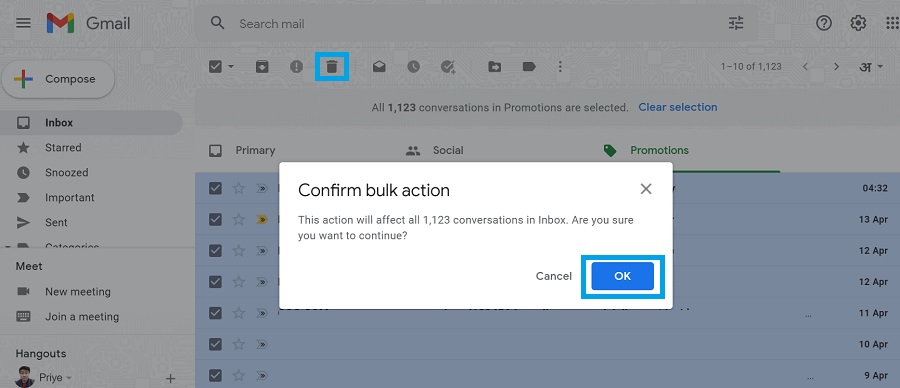
- Click on the checkbox near the top next to the archive button (box icon). Then, click on the “Select all … conversation in ” label.

- Click on the delete button (trashcan icon) near the top to bulk-delete all emails in that category. Then, click on “OK” to confirm the decision.
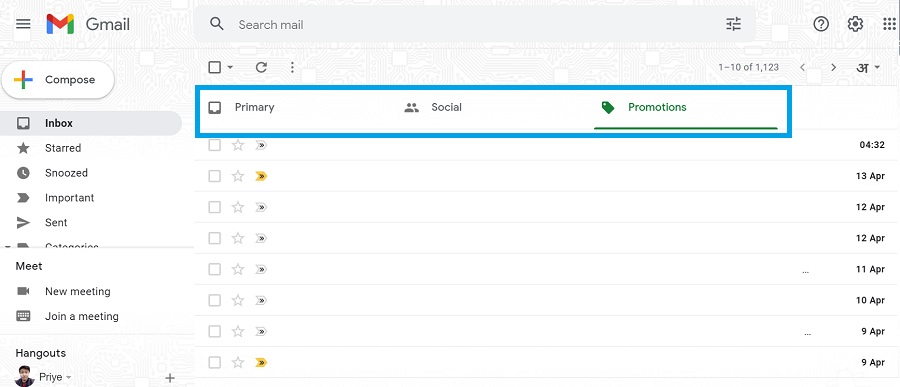
Similarly, you can delete all emails in other categories as well. It’s important to note that the “Select all … conversations in ” label won’t appear when the emails in a category only take up a single inbox page.
Lastly, this covers everything you need to know about deleting all emails from your account. Check out this guide if you wish tofind archived emails from your account. For those who want to read similar guides, check out ourGmail how-to series. For any queries or suggestions, use the comment section below.
Instead of deleting your emails one by one, you can bulk-delete them via Gmail’s desktop site.

Yes, you can delete more than 100 emails at a time by clicking on the checkbox near the top and selecting “Select all … conversations in .”