USB Drives are the most convenient go-to devices nowadays when the need to prepare a Bootable media arises. For a reason being readily available and configurable, USB drives have slowly overtaken CD/DVDs of the olden times. But even when Bootable USB media hold a significant edge over CD/DVD drives in most cases, it does have some caveats as well. The prominent one being the setting up of a USB installation media for Windows or Linux requires additional software. (Have a look at our guide toCreate bootable USB with without any software Windows 10if you want to use just the trusty old command prompt).
We have already talked about thefive best free Bootable media tool for Windows 10. You can choose the one that suits you the best. Among all of them, RUFUS is the most popular choice software for Windows 10 bootable USB tool. In this article, we aim to guide you through the steps for creating a Bootable USB Media for Windows or Linux OS using Rufus. So let’s get right to it.
How to Create a Bootable USB using RUFUS?
Requirements
Download RUFUS Latest Version
RUFUS is a freeware Windows 10 ISO to USB media creation utility. Download it from theofficial website – https://rufus.akeo.ie/.
Scroll down to theDownload sectionwhere you will find both the latest executable file and portable file. Additionally, you’re able to get previous versions by going to theother versions section.

Create Bootable Media
This Windows 10 bootable USB creation applicationdoesn’t require installationto run. Just run the executable file, and you are good to go.
First of all, Insert the USB Device and start the application asAdministrator.
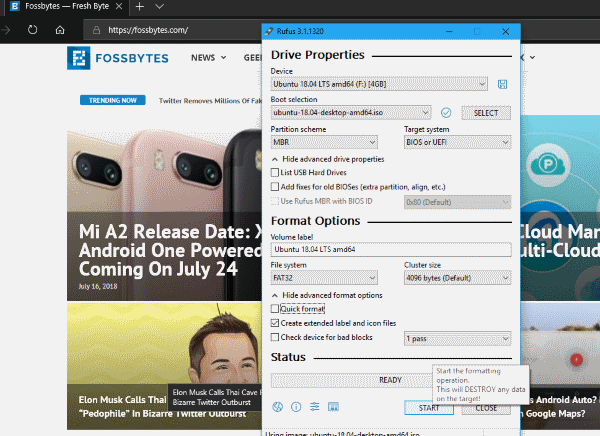
If the USB is mounted,RUFUS will automatically detectthe drive and show the same. If multiple USB devices are mounted, choose the one that you prefer from the drop-down menu underDevices.
This free USB media creation tool for Windows 10 and Mac can create USB Bootable media from ISO files devices with different settings like partition schemes, Cluster size, and file system. As you may know, various hardware and Operating system ISO files require different settings so make sure you specify them accordingly.

Next, browse to the Windows 10 ISO or any other ISO files that you would like to create a Bootable Windows 10 USB media for. This can be done underBoot selection. The latest version of this ISO to USB media application (Rufus-3.1 and above) provides options for Non-Bootable, FreeDOS and Disk or ISO images.Choose Disk or ISO Imageand click select to browse to the Linux ISO file.
Then, Click onStartand in the subsequent window popup, click onOKto confirm erasing the content and format the drive. Probably, the process would not take more than a few minutes. The status bar displays the progress. Finally, when everything is complete, you will have your Boot device ready.
Moreover, you can also check out our article onhow to make a bootable Pendrive in ubuntuhere!
Recommended Settings for RUFUS
Usually, thedefault settings would be enough, and you can start the process of Creating your Windows 10 USB or Linux USB boot media. For those of you who would like to know your hardware better, we’ll have a brief look.
Basically, the two types of low-level software that are the first to run when a computer starts are UEFI and BIOS. Barring old hardware, most of the newer machines come withUEFI(Unified Extensible Firmware Interface). UEFI is much more capable thanLegacy BIOS.Fortunately, We have written a whole article explaining just those. So, Go checkUEFI, BIOS, GPT, MBR – What’s the Difference?to know everything that you need to know about that topic.
Furthermore, if you want to know the recommended settings for each of the partition scheme, we will list the same below.
Create Bootable Windows 10 USB with UEFI
InFormatOptions,Check both:
Create Bootable Windows 10 USB using Legacy BIOS
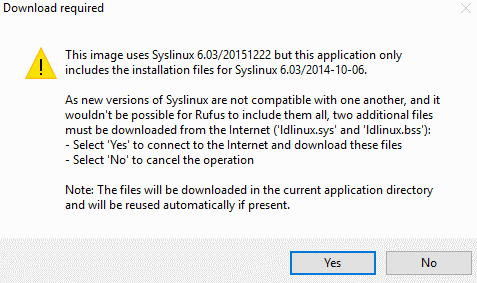
Another thing to look for in the case of Creating Linux Boot media is that RUFUS willcheck for updated Syslinux/GRUB files. Consequently, a window popup will appear asking you to choose whether to download the newer files from the server or to continue using the ones in the application.
Troubleshooting RUFUS Problems and Errors
You might run into some issues when making bootableUSBfrom ISO using Rufus
Error:[0x00000015] The device is not ready.
Mainly, this error indicates a hardware problem where the USB is not connected correctly. This type of error can happen if there isautomountingdisabled for the USB device. Further, this error is likely to come up during the USB formatting process. To fix this RUFUS problem,
Besides, if the error pops up during the ISO extraction process, this might be due to abad USB connection. Hence, using an external cable/connector to plug in a high speed 3.0 USB is not recommended.
Device eliminated because it appears to contain no media
If you happen to encounter this error, try using another USB device. Because this means that the device is no longer able to rewrite memory.
Error [0x00000005] Access is denied
Certainly, these types of errors are mostly third partysoftware conflictingwith this free Windows 10 USB tool. You should check external software like Anti Virus or Anti-malware software that might be blocking this bootable media creation application from accessing the USB drive.
Moreover, if you are using Windows 10 to create a Bootable USB device, the feature calledControlled Folder Accesswill cause problems if enabled. Controlled Folder Accessprevents applications from writingto drives outside of the location of the executed software. So make sure todisable the feature.To do this,
Bootable USB using RUFUS
So that’s pretty much all that you need to know while creating a bootable USB media using Rufus for Installing Windows 10 or Linux distributions. Finally, if you are facing any more problems during any of these processes, check out theofficial GitHub FAQ section. Also, if you want us to talk about more USB bootable media creation software let us know in the comments below. Cheers!
